
Troubleshooting Automations
Your automation or campaign shows 0 sent or is sending slowly. Here's how to get to the bottom of it.
For brand and agency operators whose TikTok automation or email automation is turned on but nothing seems to be going out.
The short answer
Two tools tell you almost everything: the Status Badge and Activity Logs.
The status badge is printed right on the automation card and usually names the reason nothing is going out: asleep, capped by TikTok, blocked by a bad product, out of creators to message, or genuinely running fine. Activity Logs then show you the real, message-by-message truth, including any error attached to a failed send.
Where to look
Dashboard → Outreach → Automations (for TikTok) or Outreach → Email Campaigns (for email). Each automation shows a status badge. Hover your mouse over the badge or the help (?) icon on it for a plain-language explanation. To see individual sends, open the automation and use Activity Logs.
Read the status badge
Active — Running and sending right now. Nothing to do. Confirm with Activity Logs.
Draft — Missing a required field, so it can't run. Open the automation; the tooltip lists what's missing (title, message type, list/group, products, invite message, contact email, DM message). Fill it in and save.
Sleeping — Outside its scheduled time range, or it already hit today's message limit. Widen the time range or raise the daily limit on the schedule step. It resumes on its own.
Completed — Reached everyone available in its recipient source. This is not a success trophy (see below). Add more recipients or broaden the query. If it completed very fast and sent little messages, check your outreach query. You may have excluded too many affiliates or applied restrictive filters. Within step #2 of the automation, you'll be able to see a preview at the bottom of the total creators in your query. The most restrictive exclusion is usually "Skip creators who have been messaged by other campaigns." To check your exclusions, click the "Exclude Affiliates" button at the top of step #2.
Outreach Cap — Your TikTok Affiliate Center messaging limit is reached. Wait for the weekly reset, typically Sunday. See the article on outreach limits here. This is a TikTok limit, not Cruva's. Your limits are determined by your affiliate GMV over the past 30 days. If your limits have already lifted but the badge still shows Outreach Cap, pause and resume the automation to restart it, and it will attempt sending again. Note: within the first outreach tier on TikTok Shop (0-2k in 30 day Affiliate GMV) most sellers are restricted to only messaging affiliates with less than 20k followers. This won't cause the campaign to pause or show a badge, but it will show in the activity logs.
Throttled — TikTok is rate-limiting the account because too many messages went out. Lower the daily limit; it auto-retries in 24 hours. Each TikTok account is capped at 10,000 DMs per day or 200 invites per day (each invite can contain up to 50 people). Exceeding either limit throttles the account. This one is lightweight and usually lifts within a few hours.
Bad Product — One or more products on the automation are unavailable for collaboration. By far the most common cause is having multiple listings for the exact same product: same name, same image, where one listing is delisted and another is active. Because the name and image look identical, check the actual product ID (a long number like 7495514739648989419) and make sure the exact number matches what you see in Affiliate Center, not just the name. Other causes include the product being out of stock, warehousing issues, or the product simply being marked as unavailable for collaboration. To see which products caused the error, hover over the Bad Product badge, or edit the automation and go to step 3 where the products are listed. It will flag the unavailable ones. To confirm on TikTok's side, go to TikTok Shop Affiliate Center and manually send a Target Collab invite using those product IDs (again, the exact ID, not the name). TikTok will block it there too.
Sensitive Text — There's text in your invite or DM message that TikTok flagged. Edit the messaging to remove the sensitive text. TikTok is usually over-restrictive and flags phrases like "flash", "whatsapp", "amazon", any curse words, and similar. To find the trigger, test the message in the Affiliate Center Target Collab invite creator. It will keep flagging the message until you remove the offending word or phrase.
Bad Email (invite automations) — TikTok is rejecting the contact email on your Target Collab invite as invalid. Edit the automation and set a valid contact email.
Paused — You turned it off. Resume it from the automation list.
Archived — Removed from the active list, kept for history. Restore or recreate if needed.
Email automations use different statuses. The badges above are for TikTok automations. An email automation doesn't have Draft, Sleeping, Throttled, or Bad Product. Its most common stop states are Reauthenticate (covered in its own section below) and SMTP error. See the email automations article for the full email flow.
For any error status badge, you can always pause & resume the automations and the system will retry messages. If you believe the status badge is a mistake, you should pause & replay the automation and our system will attempt messages again. If it gets blocked again, then it means TikTok is most likely blocking your message attempts.
Reauthenticate (email automations)
This means the email provider is blocking our attempts to send messages. The message you'll see on the site reads:
Our email provider needs you to reauthenticate this address before we can keep sending. To fix it:
A few things to check when you hit this:
- Admin restrictions. Make sure there are no admin restrictions on the email. For Workspace domains, your admin may need to allow third-party app access before reauthentication will work.
- Brand-new addresses. If it's a new email, log in and send a test email first. Cruva being the very first email sent from a fresh address usually gets blocked.
- Reauthenticate anyway. Even if everything above looks fine, you'll still need to reauthenticate. Sometimes that's all that's required. Follow the steps in the message above (Manage Sender Emails → Refresh) to reauthenticate, then resume your automations.
Once you've ensured the above, click the Manage Sender Emails button at the top of the page (Outreach>Email Campaigns)
Find the email address and click the **Refresh icon **to reauthenticate. Then resume your automations.
Activity Logs: the source of truth
This is the next place to go when something looks wrong. Click the automation, then click Activity Logs. This shows you every single message attempt the automation has made.
These per-automation Activity Logs are about messages sent to creators. If you're instead trying to see which teammate paused, edited, or started an automation, that's the account-level audit log — see Activity Logs: see who did what in your account.
If a message fails, the log entry will carry an error explaining why it failed. Most of the time that error points you straight at the fix (a bad product, a rejected email, flagged text, and so on).
When to contact support: if the error is not intuitive, or if there are no Activity Logs showing at all despite the automation displaying Active (not some error badge) and it's been more than 5 minutes since you turned it on, please contact support. A human will assist you.
Most common activity log errors:
Creator already invited
The most common reason people report messages are sending slowly.
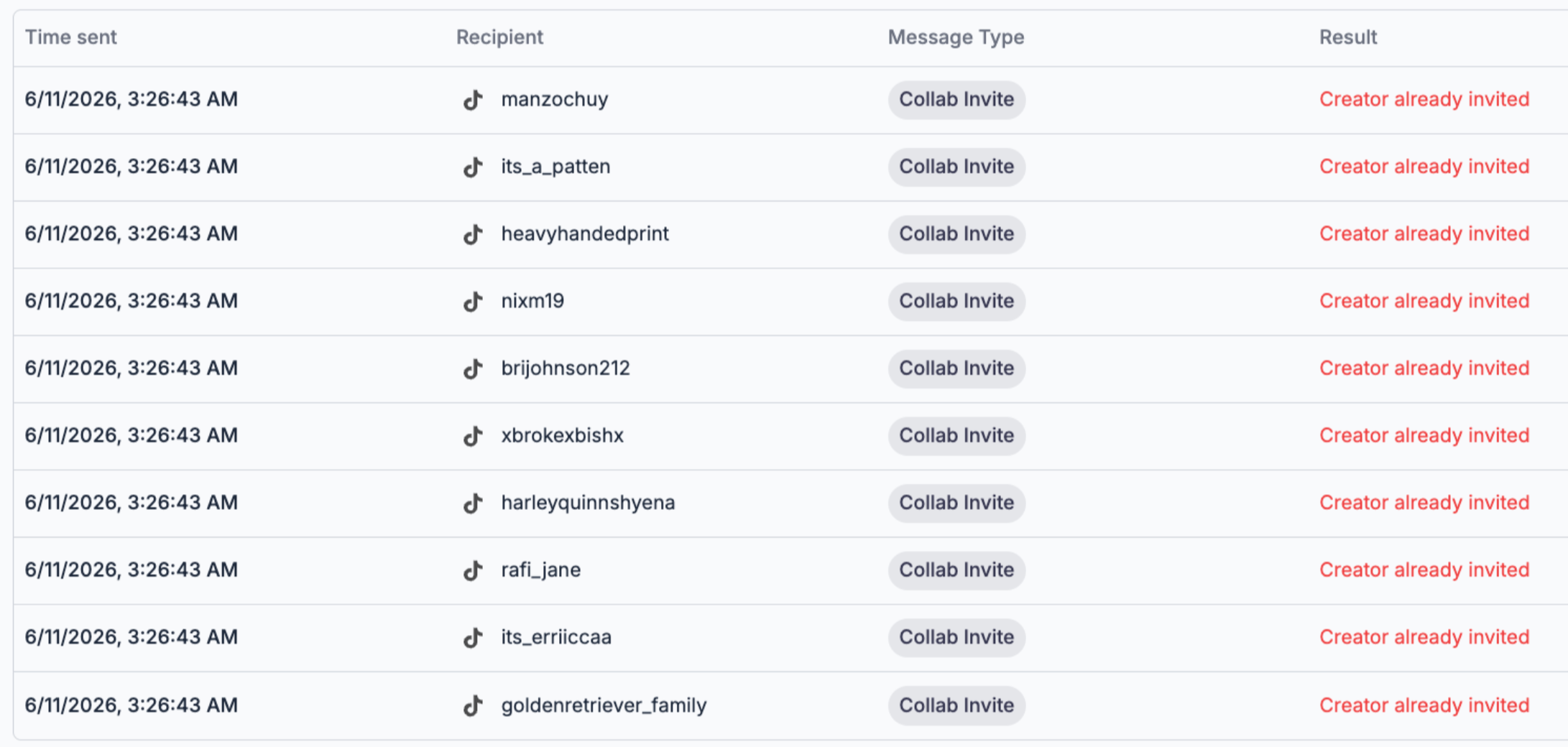
Invite Conflicts. Check if you've disabled "Auto Resolve Conflicts" at the bottom of step #3 within the Automation. When disabled, the automation will fail to message creators who are stuck in prior conflicting invites. It still attempts messages at the same speed, but if those messages fail, it can make it seem slow. If you enable "Auto Resolve Conflicts," it will gracefully migrate affiliates into the new invite and succeed on most messages. If you have enabled "Auto Resolve Conflicts" but you're still getting this error, it's most likely that the brand has a large number of invites with a large amount of products within each invite, and TikTok's system can reject the attempt to resolve invites.
You'll notice activity logs that say "Creator already invited" if that's the case.
Follower Limit
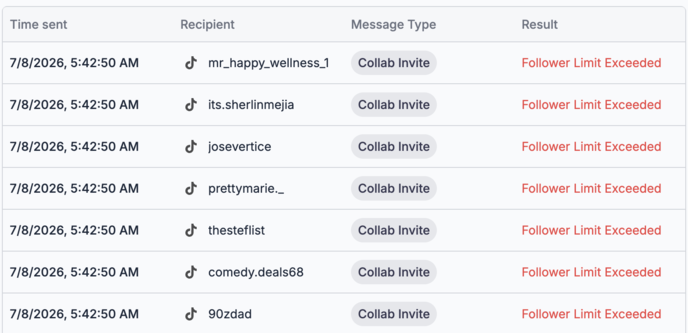
In the lowest outreach tier (typically between 1-2000 GMV/month), sellers may only message creators with less than 20k followers, hence the "Follower Limit" error. This error specifically won't pause a campaign or raise a badge, but will cause messages to fail, giving the appearance that its sending slowly even if it's attempting thousands per hour. Recommendation: adjust your outreach to target affiliates with < 20k followers.
Messages sending slowly
First, confirm what's actually happening in Activity Logs. You can view logs for a single automation (open it → Activity Logs), or see them shop-wide by navigating to cruva.com/dashboard/logs, which shows activity across every automation rather than just one. If you're seeing the "Creator already invited" or "Follower Limit" errors for example, then you have your answer as to why it's sending slowly: messaging speeds are always constant, but failed messages lead to fewer successes, which gives the appearance of "slow" sending even though the speed is constant.
A few things to understand about speed:
Multiple automations do not change your speed. Having several automations live does not increase or decrease your messaging speed. The automations take turns sending, so while each one may look slower on its own, the shop is always sending at a constant speed.
Expected throughput. Assuming no outreach limits or automation time limits are in the way, a Cruva shop on the highest plan should hit 7,000 to 10,000 messages per day, including both Target Collab (TC) invites and DMs.
Message type affects speed. Pure TC outreach and pure DM outreach both send faster than combined TC + DM outreach. That's because TC + DM sends the Target Collab invite first and then the DM, so each recipient takes two steps instead of one.
"Completed" but still "active"
Follow-ups still send after "Completed" unless you stop the automation. Once all the follow-ups have been sent, the campaign will pause itself.
Invitation group save failed
A new bug from TikTok where the creators and products are completely valid, yet sending the invite fails with no explanation other than this mysterious error. One-at-a-time sending collaboration invite cadence overcomes this issue. See the article on how to modify your invite cadence.
Sending links in DMs
You can paste any URL into a DM or automation message, and that's how we recommend sharing your creator briefs, Cruva community campaigns, Meta Ads programs, and anything else you want a creator to open. The link goes through fine.
What creators see. In TikTok's messaging UI, links don't render as clickable. They arrive as plain text the creator has to copy and paste into a browser. This is a TikTok limitation, not a Cruva one, and there is nothing we can do to change it. TikTok does this deliberately because it doesn't want users leaving the platform, and it has always been this way. Every large seller running affiliate programs on TikTok Shop deals with the same thing, and the way they get past it is simply to keep sending links anyway. Creators who want the opportunity copy them.
Tips that help:
- Put the link on its own line so it's easy to select.
- Keep the URL short. A clean link is easier to copy correctly than one with long tracking parameters.
- Tell the creator what the link is and why it's worth opening, since they can't preview it.
The good news. Once a creator joins your creator community, you can reach them through community chat inside Cruva. Community chat sends notification pings, has proper clickable links, and gives each campaign its own channel. Use TikTok DMs to get creators in the door, then move the ongoing conversation to community chat.
Common problems
"It's been 'Sleeping' for two weeks." It's outside its scheduled window, or the daily limit is 0 for the current days. Open the schedule step, widen the active time range, and make sure a daily message limit is set for each weekday you want it to run.
"It says Sleeping but I'm inside my time window (e.g. London hours)." Check the timezone on the schedule. The window is evaluated in the automation's configured timezone, and the daily limit is evaluated in its own limits timezone. A mismatch makes it look asleep during your local business hours.
"Bad Product, but the product looks fine / the ID doesn't match my products." The badge tooltip lists the exact product IDs TikTok considers unavailable. A product can be in stock in Seller Center yet still be unavailable for collaboration in Affiliate Center. Make sure every product on the automation belongs to your store and is collaboration-eligible, then resume.
"0 Affiliate GMV detected, can't send." TikTok blocks outreach for shops with $0 affiliate GMV in the last 30 days. This is a TikTok limitation, not Cruva. One affiliate sale unlocks it; limits refresh every Sunday. The fastest unlock is to buy from an affiliate's shoppable video of your product.
"Performance score below 3.5." This is a TikTok-side gate. Go to TikTok Seller Center → Account Health → Shop Performance Score, resolve the issues (often bad reviews or seller-fault returns), then resume the automation.
"It says Outreach Cap but I've sent 0/2000." See the outreach caps article. The counter and the cap can look out of sync around reset time, and the cap counts messages to unconnected creators only.
How long before sends start?
A running automation sends on a paced schedule, often several messages per minute once it's warmed up, not one giant burst. Expect steady output over hours, throttled down deliberately to protect your TikTok account. Check Activity Logs to confirm it's ticking.
Can't locate your product?
In the product dropdown, select "Name" instead of "ID" and add the PID directly. If Cruva isn't syncing your product, you can always manually add the PID here.
My product images aren't showing/older product images are showing?
The product images on outreach automations (TikTok-based messaging) shown within the Cruva dashboard are purely cached images to improve the UI of the campaign creation process on Cruva. If an image isn't loading or is showing an older image, it's no problem. As long as the product ID is correct, the messages will send correctly over TikTok containing your latest product images. Cruva updates these product images periodically, so if it's still not updating after a few days contact support, but in any case it will send the correct images over TikTok. However if a product image isn't updating for a creator community campaign or product brief, contact support.
Was this article helpful?
Related articles
- Outreach caps and message limits explainedYour weekly TikTok messaging cap comes from TikTok — based on your shop's GMV — not from your Cruva plan. Here's how it works and when it resets.
- Automation and campaign statuses explainedA plain-language glossary of every status badge on your automations and email campaigns — and why 'Completed' does not mean success.
- Sample request statuses explainedWhat every sample status means — To Review, Ready to Ship, In Shipment, Content Pending, Posted, Overdue, Expired, Cancelled — plus why Posted samples can have no content and why posted creators can stay Content Pending.
- Data Discrepancies and why numbers differ from TikTokGMV, orders, views, and sample counts can differ from TikTok — here's why, what Cruva attributes, how often it syncs, and when the two reconcile.
- Exporting Your Data (CSV & Reports)Where to export creators, videos, analytics, and samples — plus how to pull everything before you cancel.