Introducing Profit: Know What You Actually Make
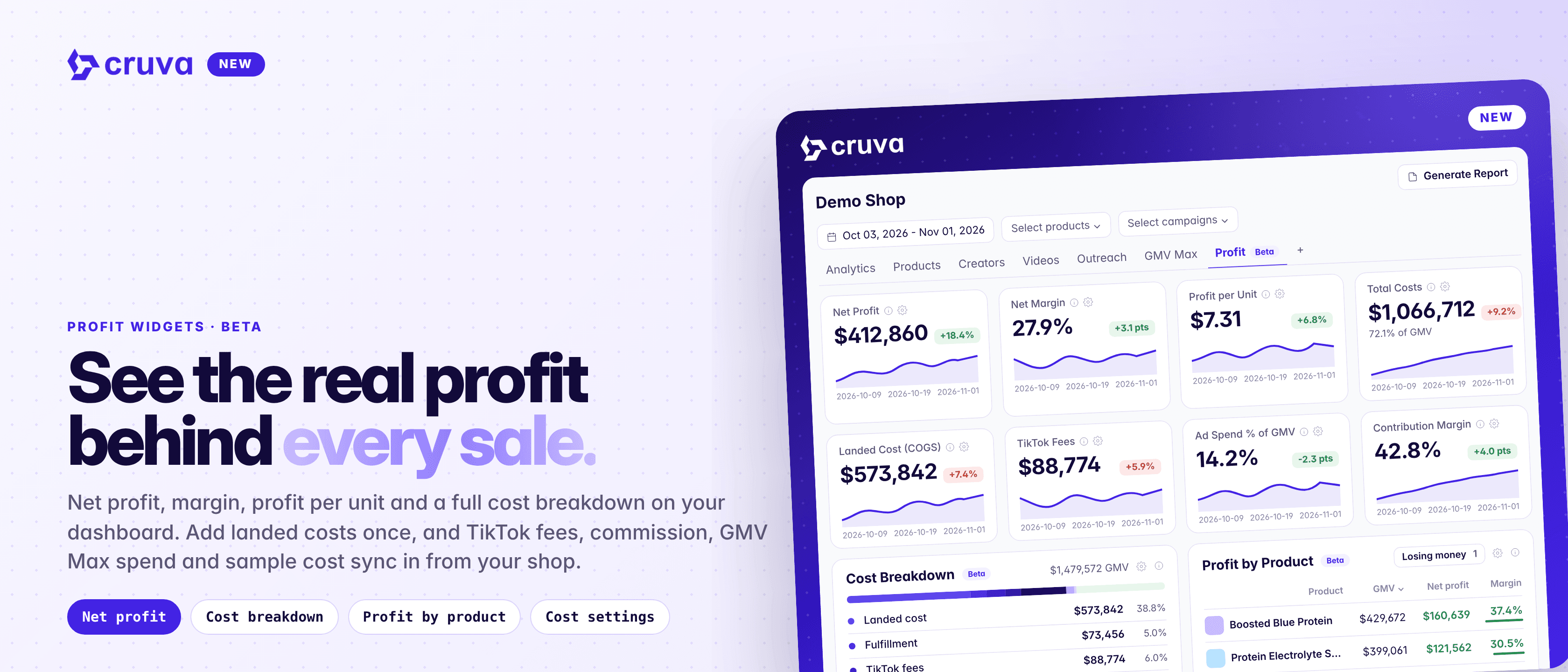
Add your landed costs once, and commission, GMV Max spend and sample cost come in from your shop.
GMV tells you what sold. Profit tells you what you kept. The new Profit tab puts net profit, margin and a full cost breakdown next to the rest of your numbers, worked out from the costs you add and the ones Cruva already tracks.
Profit, not just GMV
Net Profit, Net Margin and Profit per Unit, each with a trend over time.
Where the money goes
Cost Breakdown splits GMV into each cost line and what's left as profit.
Find the products losing money
Profit by Product ranks each product by net profit and margin, with a Losing money filter.
Most costs fill themselves in
Commission, GMV Max spend and sample cost sync from your shop. You add landed costs once.
How it works
On plans that include profit, a Profit tab is added to your Dashboard. You can also add any profit widget to another dashboard: click Edit, open Profit & costs in the Customize panel, and click or drag it onto the board.
- 1
Open Cost settings
Choose Cost settings from the dashboard's ⋯ menu, or click the gear on any profit widget.
- 2
Add your landed costs
On Product costs, enter what each product costs you landed in your warehouse, or expand it to set SKU costs. Bulk edit by amount or % of price, or upload a CSV in the same format as Sample COGS.
- 3
Fill the gaps while you go
Turn on Estimate missing costs at to cost uncosted products at a % of their sale price, 35% to start. Show them first lists your top sellers without a cost.
- 4
Add your other costs
On Other costs, set a per-unit fulfillment cost and add monthly costs such as software or agency fees. Adjust the TikTok fee rate, or override GMV Max spend or sample cost.
- 5
Save and read your profit
Click Save costs. Net Profit, Net Margin, Profit per Unit, Total Costs, Cost Breakdown and Profit by Product all follow the board's dates and product filter.
Costs you enter here also update your sample spend, and the other way round. Click a row in Profit by Product to filter the whole dashboard to that product.
See the real profit behind your sales.
How net profit is calculated
Net profit is GMV minus these costs:
| Cost | How it's counted |
|---|---|
| Landed cost | Units sold × the cost you set per product or SKU |
| Fulfillment | Units sold × your per-unit fulfillment cost, if set |
| TikTok fees | An estimate, 6% of GMV by default, since TikTok doesn't share fee data |
| Commission | Affiliate commission by order date: actual once settled, estimated while pending |
| GMV Max spend | Synced from your TikTok Ads account |
| Sample cost | Samples shipped in the range, at product cost |
| Monthly costs | Recurring costs you add, prorated by day, shop-wide only |
Profit by Product leaves out monthly costs, so its total differs from shop-level Net Profit.
Good to know
- Partial data, clearly marked. Products without a cost are left out of both GMV and costs, and Net Profit shows Partial data. Estimated costs show Includes estimates.
- Cost changes apply to past dates. There's no cost history yet, so a change recalculates every date. Changes are recorded in your shop's audit log.
- More ways to read margin. Add Landed Cost, TikTok Fees, Ad Spend % of GMV and Contribution Margin as stat cards. Percentage charts use a 3-day rolling average.
- Profit stays private. Profit data never appears on shared dashboard links.
See your profit on the dashboard
Profit widgets and Cost settings are in beta on the Scale plan and legacy Growth plan. Team members need Affiliate CRM > Reports access to see the Profit tab.