Introducing the AI Sample Filter and Swipe Mode
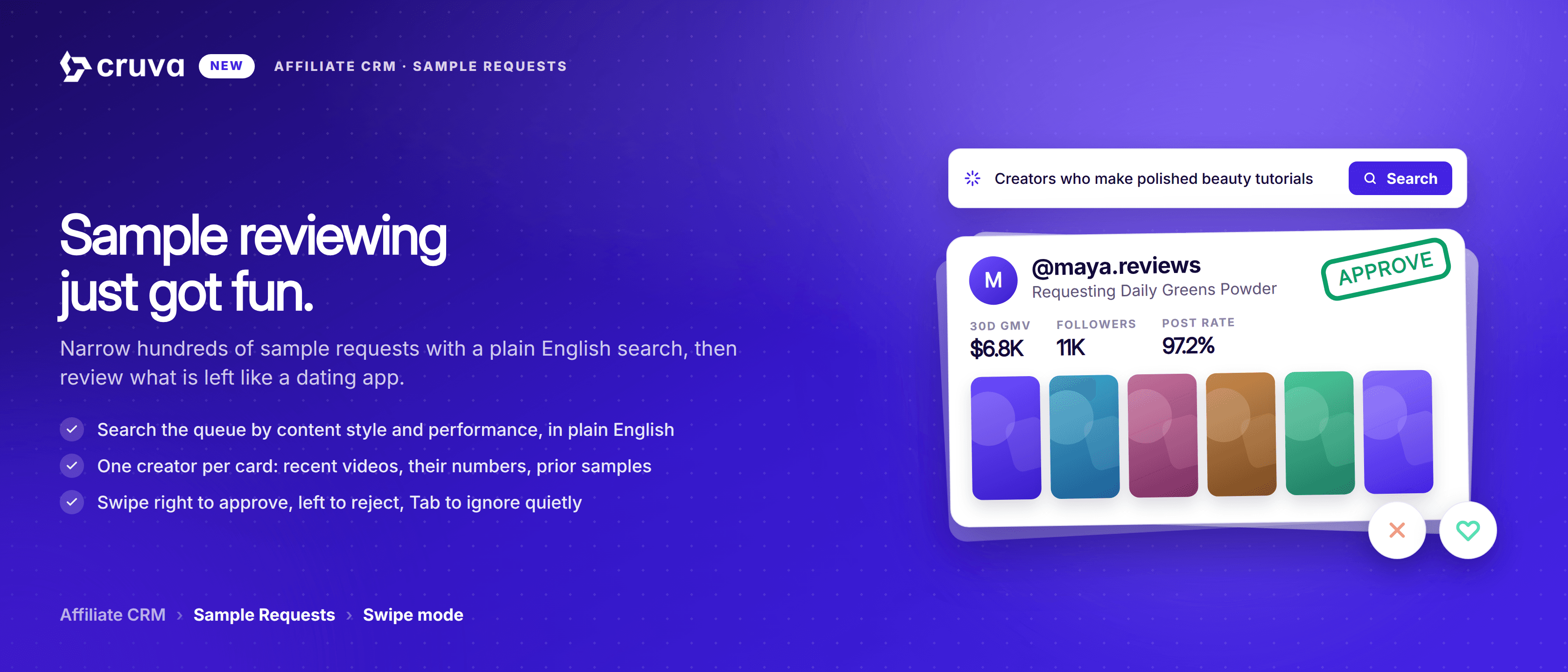
Search Sample Requests in plain English, then review the matches in Swipe Mode with creator videos, performance data, and one-swipe approve or reject.
Two things are new on the Sample Requests page. The AI sample filter searches the request queue in plain English, reading what creators actually post as well as the numbers behind them. Swipe mode has been rebuilt to review requests one creator per card, dating-app style. Use either one on its own, or run the filter first and swipe through what it returns.
The ends are already handled
Auto Review already approves and rejects on the criteria you set, like shop GMV, followers or PPS. That half of the problem was never really the problem.
The middle is most of the queue
On a larger shop, the requests that need a human look are not the exception. They are the bulk of what arrives every week.
Numbers cannot say what you mean
Inside that middle pile everyone looks similar on paper. What separates them is what their content actually looks like, and no threshold can express that.
So it gets done by hand, or not at all
Opening profile after profile is slow, and skipping it means rubber-stamping. Neither one is really a decision.
How it works
The AI sample filter works like AI Creator Search, pointed at your sample queue instead of the whole creator catalog. You describe who you are looking for in plain English, and it searches on what a creator's content actually looks like, and the performance metrics behind it. Swipe mode is the new way to review whatever the queue is showing. Either can be used on its own.
- 1
Search the queue in plain English
Type the query the way you would say it. No filter panel and no ranges to set: Skincare creators with $5k+ GMV is a single search, and the queue narrows to the matches, sorted by relevance.
- 2
Combine look and numbers in one query
Because the filter reads the content as well as the stats, one sentence can carry both the kind of creator you want and the performance to go with it.
- 3
Review one request per card
Each card carries the creator's handle, level and bio, when they requested, and exactly what they asked for: the product, the variant, the commission and the product ID.
- 4
See the video that matched, next to their recent ones
The card surfaces the creator video most relevant to your search alongside their recent posts, so you can see why they matched and what they usually make. Prior sample history from your shop sits beside it.
- 5
Two sets of numbers, side by side
Affiliate Performance covers all shops: 30d GMV, 30d views, followers, post rate, engagement, brands, average views per video and shoppable videos. My Shop Performance covers only yours: GMV, video GMV, LIVE GMV, commission and the averages behind them.
- 6
Throw the card, or use the keyboard
Drag right to approve, left to reject, down to ignore. Or stay on the keyboard: enter approves, space rejects, Tab ignores, S skips. A running count of approved, rejected, ignored and skipped sits beside the queue, along with who is up next.
Swipe mode is for deciding, not for clearing. It puts one creator in front of you at a time so you can look at their content before you call it, which is worth doing when you care who gets your product.
Sample reviewing just got fun. Narrow the queue with a sentence, then review what is left one creator at a time.
Three things to know before you start swiping
- Auto Review still owns the ends. Those rules approve or reject on criteria you set, on their own schedule, and nothing here replaces them. The filter and Swipe mode are for what the rules deliberately leave to you.
- Ignore is silent, reject is not. Rejecting notifies the creator. Ignoring only hides the request inside Cruva, leaves TikTok Shop untouched, and asks whether you want to hide that creator's future requests too.
- Approving and rejecting are both irreversible. Swipe mode says so before your first card. Reversing an approval means canceling the order in TikTok Seller Center, and that can count against your shop performance score.
What has not changed
A request you approve moves to Ready to Ship, and fulfillment carries on happening in TikTok Seller Center, where the addresses and labels live. Cruva reads the statuses back from there on its usual sync, so a decision made in one place shows up in the other after the next cycle.
On the Sample Requests page now
Affiliate CRM > Sample Requests. The filter sits over the queue, and Swipe mode is the button at the top right.