Campaign Content Guidelines, Now with Auto-Scan
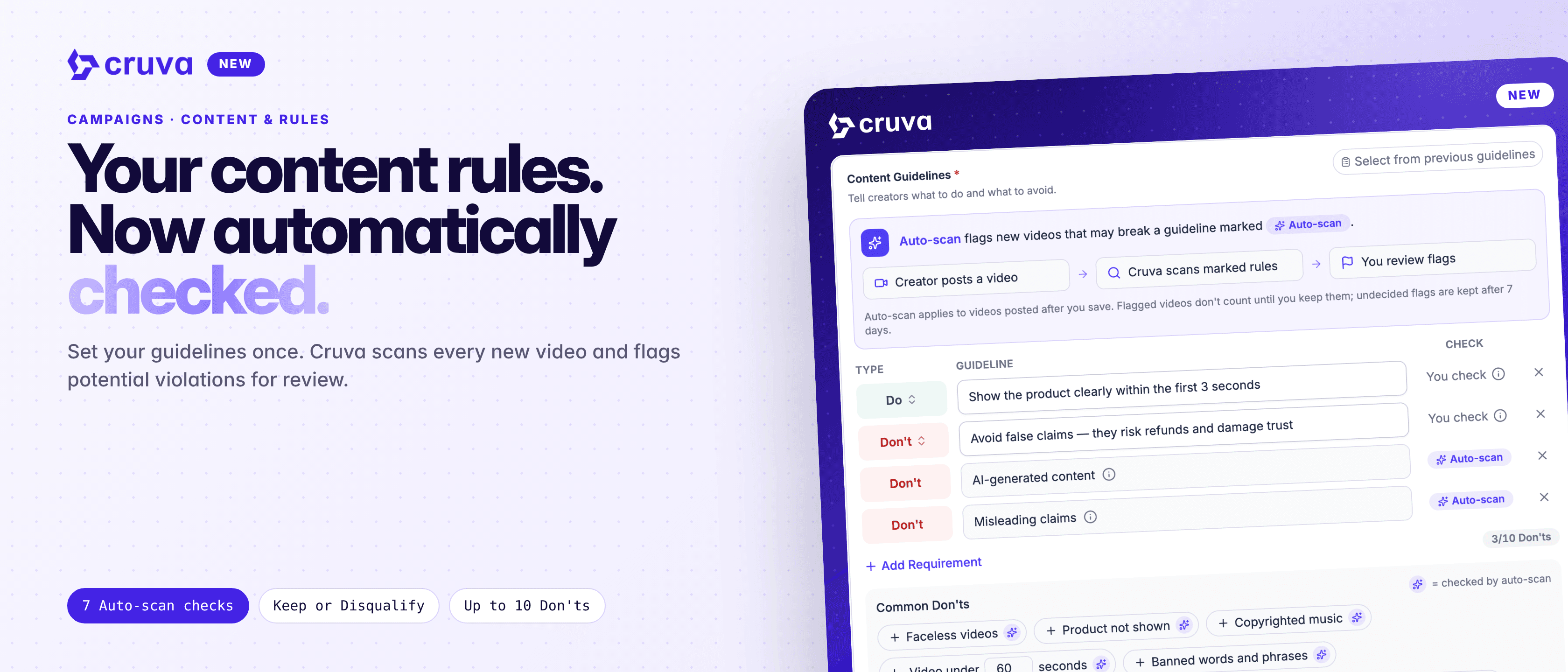
Set your campaign's content rules, and Cruva automatically checks every new creator video for potential violations, flagging anything that needs your review.
Every brand has rules for creator content. Show the product, no AI presenters, no claims the product can't make. But once a campaign is live, checking each new video against those rules by hand is slow, and a video that breaks them can count toward a payout before anyone notices.
Rules live in a doc somewhere
Creators don't always see your guidelines before they start posting.
Checking is manual
Watching every new video to spot a broken rule adds up fast across a busy campaign.
Payouts move faster than reviews
A video that breaks your rules can count toward goals and tiers before you get to it.
Creators don't know why
When a video is disqualified, the creator often isn't told which rule it broke.
How it works
Every campaign that counts videos now has a Content Guidelines table on the Content & rules step. That covers contests, leaderboards, races, retainers, bingo and sweepstakes.
- 1
Write your Do's and Don'ts
In the campaign editor, go to Content & rules and click Add a Do or Add a Don't. Use Select from previous guidelines to copy rows from another campaign or a creator brief. A campaign can have up to 10 Don'ts.
- 2
Turn on Check videos automatically
Add preset Don'ts from Common Don'ts, such as AI-generated content, faceless videos or a minimum length. Cruva checks each new video against them.
- 3
Creators read them before joining
Creators see your Do's and Don'ts and confirm I've read the Do's and Don'ts before they join.
- 4
Review flagged videos
A video that may break a preset Don't is flagged and doesn't count toward goals, tiers or payouts yet. Open Needs your action on the campaign page, or the Flagged tab in Campaign Videos, and choose Keep video or Disqualify.
Checks apply to videos posted after you turn them on. Videos posted before then aren't checked, and photo carousels and LIVEs aren't checked. Commission Boost campaigns don't offer automatic checks.
| Preset Don't | What gets flagged |
|---|---|
| AI-generated content | Videos whose main footage or presenter is synthetic |
| Faceless videos | The creator's face is never on camera |
| Misleading claims | Health or results claims the product can't make, fake urgency, false prices |
| Product not shown | The product never appears on screen |
| Copyrighted music | A copyrighted song instead of an original or licensed sound |
| Video under N seconds | Videos shorter than the length you set |
| Banned words and phrases | Your words, matched as whole words in the caption, what's said and on-screen text |
Don'ts you write yourself, and the fraud, spam and boosting presets, are shown to creators but not checked automatically. Enforce them with Disqualify.
Your content rules. Now automatically checked.
Reviewing a flag
Click a flagged video's status to open its review panel. It shows the Don't the video may break and the detail behind it, such as the matched words, the claim and when it's said, or how long the product is on screen. Keep video counts it from then on. Disqualify fills in the flag's reason and, by default, sends the creator a message in their Cruva chat, which you can edit or turn off.
On the Flagged tab, select several videos to Keep selected or Disqualify selected at once. Both decisions show an Undo button for a few seconds.
What happens if you don't decide
- Kept after 7 days. A flag nobody decides is kept automatically after 7 days, or when the campaign is ending, before payouts are calculated.
- Creators stay in the loop. A flagged video shows Under review by the brand on the creator's campaign page. A disqualified one shows Not counted with your reason.
- Works with post review. If post review is on, keeping a flagged post also approves it. An undecided flag goes back to the review queue after 7 days instead of being kept.
- Turning a preset off unflags its videos. They count again on the next sync, unless you already disqualified them.
Add guidelines to your next campaign
Content Guidelines is on the Content & rules step of every campaign that counts videos. Turn on Check videos automatically to have Cruva flag new videos for your review.