AI Video Analysis, Upgraded
Open any analyzed video to see its hooks and selling points on the timeline, click one to play from that moment, and copy the whole transcript with times.
Knowing a video has a strong hook is useful. Knowing exactly when it's said, and hearing it in one click, is better. The video window now ties Cruva's AI analysis to the video itself, so you can jump straight to the moments that sell.
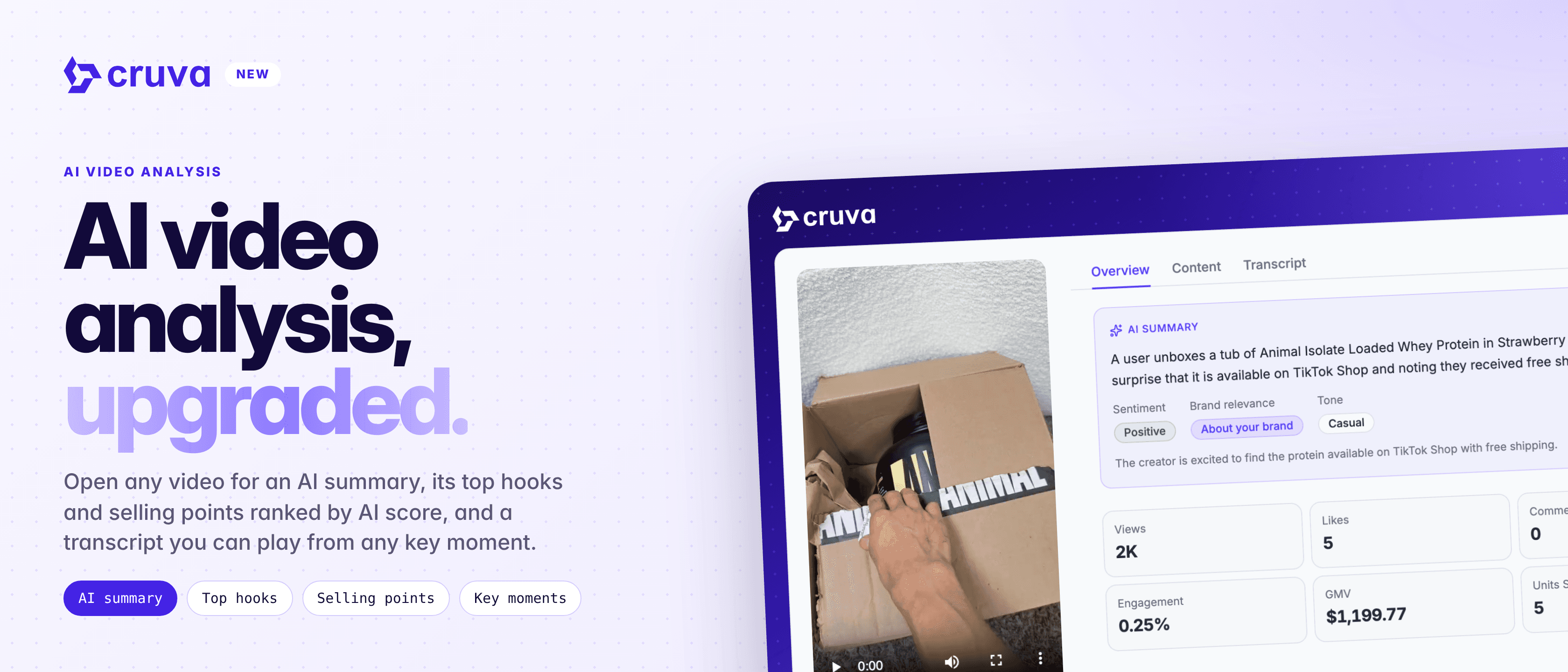
Overview
An AI summary of the video, with its sentiment, brand relevance and tone, next to its lifetime stats.
Content
The video's top hooks and selling points, each scored out of 10 with why it works, plus how the product shows up.
Transcript
Key moments on a timeline of the video. Click one to play from there, and copy the transcript with times.
How it works
Go to Content > TikTok Shop > Videos and click any video's thumbnail. The video plays on the left, with three tabs on the right.
- 1
Start on Overview
Read Cruva's AI summary of the video, with its Sentiment (how it talks about your brand), Brand relevance and Tone, alongside views, likes, comments, engagement, GMV and units sold.
- 2
See what sells on Content
Top hooks and Top selling points rank the video's own lines by Cruva's AI score, with why each works and when it's said. Click one to play the video from there.
- 3
Jump to key moments
On the Transcript tab, Key moments lists the hooks and selling points in the order they're said, under a bar of the video showing where each one is. Click one to play it and read why it works.
- 4
Copy the transcript
Click the copy icon at the top of Key moments to copy the whole transcript, with times, to your clipboard.
Use the arrows at the top, or your keyboard's up and down keys, to move through the table without closing the window. It keeps the tab you're on as you go.
Hear the hook, not just read about it.
From the Videos page to the moment
Top Hooks and Top Selling Points on the Videos page now link straight in. Click one and its video opens on the Transcript tab with that line highlighted, starting where it's said.
Ways to use it
- Brief creators with real lines. Copy a top video's transcript, with times, straight into your next creator brief.
- Review faster. Jump to the hook or the product mention instead of scrubbing through the whole video.
- Check brand fit at a glance. Sentiment and Brand relevance on Overview show how a video talks about you before you boost or license it.
Videos analyzed before November 2026 don't have sentiment or relevance, so those parts just don't show for them.
Open a video and find its key moments
Go to Content > TikTok Shop > Videos, click any thumbnail, and open the Transcript tab.