Edit Target Invites in Bulk
Fix the invites you want and update commissions, expiration dates, or sample rules, all without resending them
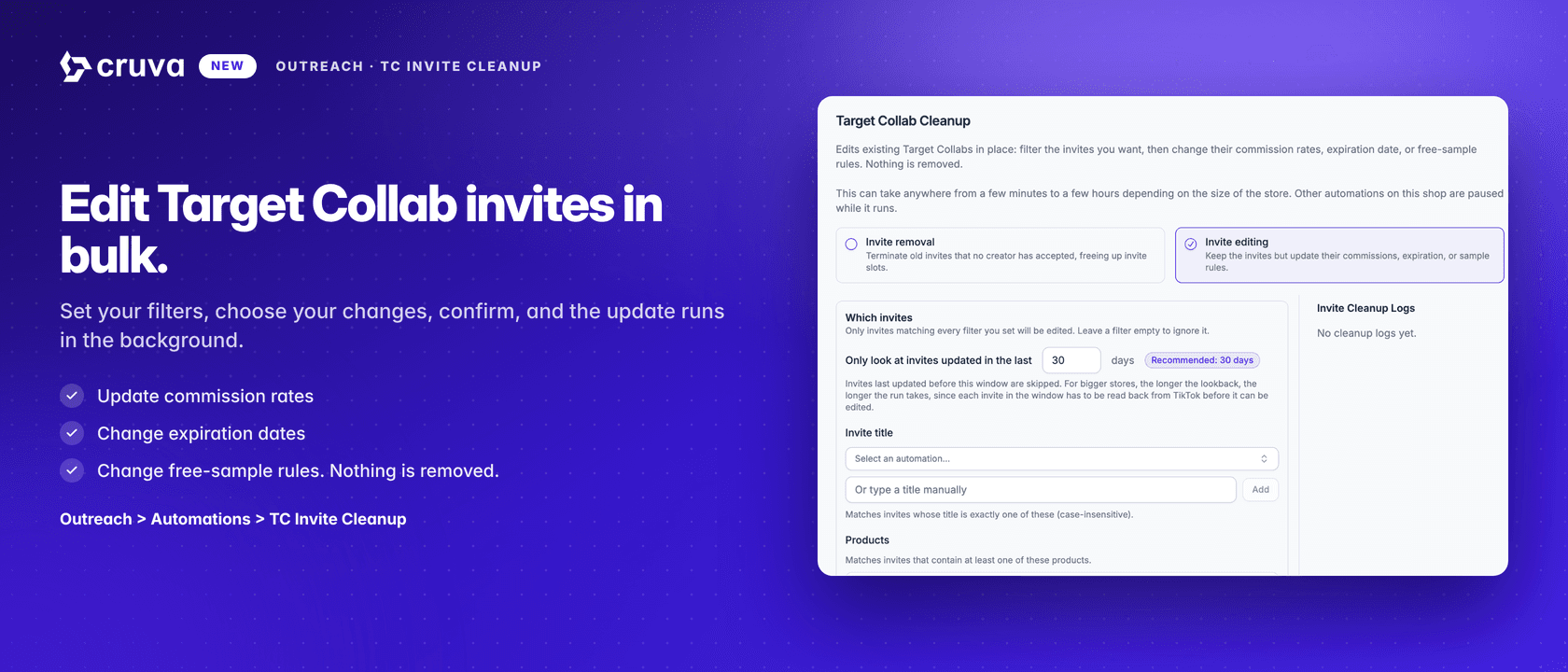
Invite editing is a new mode in Target Collab Cleanup. It keeps your Target Collab invites exactly where they are and updates their commission rates, expiration date, or free sample rules. Nothing is removed, and no creator loses their place.
An invite's terms are locked in the moment it goes out. Invites sent with the wrong commission, or with sample auto-approval switched on, stay live on those terms until something changes them. Invite editing changes them in bulk, in place.
Go to Outreach > Automations and click Run TC Invite Cleanup, then pick Invite editing at the top of the popup.
How it works
First, choose which existing invites you want to update using filters such as campaign, creator, commission rate, expiration date, or sample settings.
Then choose what you want to change.
- 1
Which invites
Start with a lookback: only invites updated in the last X days are considered, and 30 days is the recommended default. A longer window means a longer run, because every invite in it has to be read back from TikTok before it can be edited. Then filter by invite title, products on the invite, a commission range, an expiration date range, whether the invite offers free samples, and whether it auto approves sample requests. Every filter you set has to match, and one you leave empty is ignored. Leave them all empty and the popup warns you that the changes will hit every active invite in the window.
- 2
What to change
Tick one or more actions. Update commission rates sets a new standard rate and a new Shop Ads rate, either across every product on the invite or only on products you name, and leaving either rate blank keeps what the invite already has. Change expiration date gives matched invites a new end date. Change free-sample rules turns free samples on or off and sets whether requests are auto approved, and turning samples off turns auto approval off with them. Creators, products, the message and contact details are left alone.
Click Apply to matched invites and confirm. The run happens in the background.
Common fixes
Auto approval went out by mistake
Filter by the automation's invite title with Auto approve set to Yes, then leave free samples on and switch auto approval off. This is TikTok's blanket approval on the invite, not Cruva's Auto Review. Samples TikTok already approved stay approved, so the sooner you run it the fewer go out unreviewed.
Wrong commission on a launch
Filter by the automation's invite title, tick Update commission rates, and apply the correct rate to all products. Rates run from 1% to 100%.
A campaign is about to lapse
Filter by expiration date for the next week or two, tick Change expiration date, and pick a date further out.
Before you run it
- Commission changes take effect immediately for creators who have already accepted. Anything they sell between a mistaken edit and your correction earns the rate that was live at the time.
- Expiration dates only move later. TikTok does not allow an invite's expiration to be shortened, so an invite that already expires after the date you pick is left unchanged.
- If you choose Apply to specific products, an invite carrying none of those products is skipped entirely, including by the other actions you ticked in the same run.
- Other automations on this shop stop sending while a run is in progress, and resume on their own when it finishes. A run takes a few minutes to a few hours, depending on how many invites the store has.
When a run finishes, Invite Cleanup Logs in the same popup has a downloadable CSV listing every invite that changed, its previous and new values, and anything the update failed on with the reason. If an edit goes out wrong, run another edit to put it back.